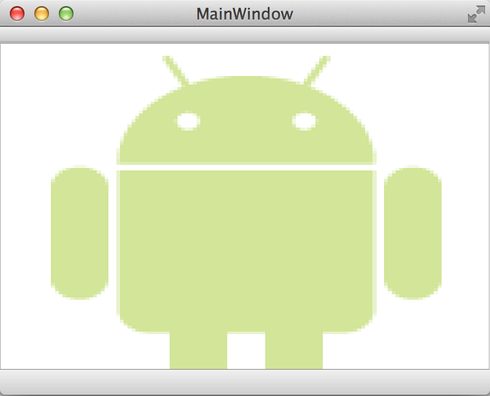
QtのウィジェットであるQGraphicsView上にPNG画像を表示します。また、CUI操作でのビルド方法を用います。
Table of Contents
1 QGraphicsView
QtでPNG画像を表示する方法はいくつかあると思いますが、最も単純だと思 われるQtGraphicsViewを用いた方法を紹介します。
2 プロジェクトの作成
qtcreatorでプロジェクトを作成します(qtcreatorを使わずに.proファイル、 main.cpp、mainwindow.cpp、mainwindow.hを作成する方法があると思うので すがよく分かってないです)。
新しいプロジェクトの作成、Qtウィジェットプロジェクト、プロジェクト名 の入力、その後はデフォルトの設定でいきます。 今回はプロジェクト名をsampleにしました。
プロジェクト作成後に以下のファイルが生成されます。
$ ls
mainwindow.cpp  mainwindow.ui  sample.pro.user
main.cpp  mainwindow.h    sample.pro
sample.uiファイルはQGraphicsViewやQButton等のウィジェットのレイアウ トを記録するファイルで、GUI操作で設置できます(sample.uiファイルを直 接編集しても問題ありません)。
また、sample.proの内容は以下の通りです。
#-------------------------------------------------
#
# Project created by QtCreator 2014-09-12T18:36:46
#
#-------------------------------------------------

QT       += core gui

TARGET = sample
TEMPLATE = app


SOURCES += main.cpp\
        mainwindow.cpp

HEADERS  += mainwindow.h

FORMS    += mainwindow.ui
.proファイルにCONFIG += consoleを追加すると、標準出力を用いることが できます(指定しない場合std::coutの文字列は表示されません)。
3 CUIでビルド
.proファイルがあるディレクトリでqmakeを実行することでMakefileが生成 されます。.proファイルが存在するディレクトリのパスを渡すことで、別の ディレクトリでもMakefileを生成できます。
$ qmake # or qmake <path-to-dot-pro>
$ ls
Makefile  mainwindow.cpp  mainwindow.ui  sample.pro.user
main.cpp  mainwindow.h    sample.pro
-oオプションを指定することで生成されるMakefileの名前を指定できます。 これは既にMakefileが存在する場合に便利です(Makefile内部でqmakeコマ ンドを実行し、新たなMakefileを生成する場合)。
$ qmake -o Makefile.Qt
Makefile.Qt  mainwindow.cpp  mainwindow.ui  sample.pro.user
main.cpp     mainwindow.h    sample.pro
makeコマンドを実行すると、ui_mainwinow.hとmoc_mainwindow.cppが自動生 成されます。 これらのファイルに.uiファイルで指定したウィジェットのレイアウト情報 が反映され、mainwindow.cppの変数ui経由でアクセス可能になります。
$ make -f Makefile.Qt
/usr/bin/uic-qt4 mainwindow.ui -o ui_mainwindow.h
g++ -c -m64 -pipe -O2 -Wall -W -D_REENTRANT -DQT_WEBKIT
-DQT_NO_DEBUG -DQT_GUI_LIB -DQT_CORE_LIB -DQT_SHARED
-I/usr/share/qt4/mkspecs/linux-g++-64 -I. -I/usr/include/qt4/QtCore
-I/usr/include/qt4/QtGui -I/usr/include/qt4 -I. -I. -o main.o
main.cpp
g++ -c -m64 -pipe -O2 -Wall -W -D_REENTRANT -DQT_WEBKIT
-DQT_NO_DEBUG -DQT_GUI_LIB -DQT_CORE_LIB -DQT_SHARED
-I/usr/share/qt4/mkspecs/linux-g++-64 -I. -I/usr/include/qt4/QtCore
-I/usr/include/qt4/QtGui -I/usr/include/qt4 -I. -I. -o mainwindow.o
mainwindow.cpp
/usr/bin/moc-qt4 -DQT_WEBKIT -DQT_NO_DEBUG -DQT_GUI_LIB
-DQT_CORE_LIB -DQT_SHARED -I/usr/share/qt4/mkspecs/linux-g++-64
-I. -I/usr/include/qt4/QtCore -I/usr/include/qt4/QtGui
-I/usr/include/qt4 -I. -I. mainwindow.h -o moc_mainwindow.cpp
g++ -c -m64 -pipe -O2 -Wall -W -D_REENTRANT -DQT_WEBKIT
-DQT_NO_DEBUG -DQT_GUI_LIB -DQT_CORE_LIB -DQT_SHARED
-I/usr/share/qt4/mkspecs/linux-g++-64 -I. -I/usr/include/qt4/QtCore
-I/usr/include/qt4/QtGui -I/usr/include/qt4 -I. -I. -o
moc_mainwindow.o moc_mainwindow.cpp
g++ -m64 -Wl,-O1 -o sample main.o mainwindow.o moc_mainwindow.o
-L/usr/lib/x86_64-linux-gnu -lQtGui -lQtCore -lpthread
4 PNG画像を表示するウィジェット
PNG画像をQImageでロードし、そのQImageをpaintEventで表示する SampleViewクラスを定義します。
4.1 QGraphicsViewを継承したSampleViewクラスを定義
コンストラクタでQImageを初期化します。アルファ値を128にする為、 convertToFormatメソッドで画像フォーマットを変更しています。
上位ウィジェットからの描画要求があった際に呼ばれるpaintEventメソッド にて、QPainterクラスのdrawImageでQImageを描画します。
#ifndef __SAMPLE_VIEW_H
#define __SAMPLE_VIEW_H

#include <QGraphicsView>
#include <QImage>
#include <QRect>
#include <QWidget>
#include <iostream>

class SampleView : public QGraphicsView {
 private:
  QImage mQImage;
  QRect mRect;

  void setAlpha(int alpha)
  {
    for (int x = 0, width = mQImage.width(); x < width; ++x)
      for (int y = 0, height = mQImage.height(); y < height; ++y) {
        QColor color(mQImage.pixel(x, y));
        color.setAlpha(alpha);
        mQImage.setPixel(x, y, color.rgba());
      }
  }

 public:
  SampleView(QWidget *parent) : QGraphicsView(parent)
  {
    mQImage.load("sample.png");
    mQImage = mQImage.convertToFormat(QImage::Format_ARGB32);
    setAlpha(128);
    mRect = QRect(0, 0, mQImage.width(), mQImage.height());
  }

  void paintEvent(QPaintEvent *)
  {
    QPainter qPainter(viewport());
    QRect rect(0, 0, width(), height());
    qPainter.drawImage(rect, mQImage, mRect);
  };
};

#endif /** __SAMPLE_VIEW_H */
4.2 mainwindow.uiファイルにSampleViewを追加
mainwindow.uiファイルにCentralWidgetクラスの変数centralWidgetのエン トリがあり、その配下にSampleViewを追加するだけで独自ウィジェットが Mainwindowに追加されます。
--- mainwindow.ui.org 2014-09-12 21:47:55.245000000 +0900
+++ mainwindow.ui 2014-09-12 22:45:43.621000000 +0900
@@ -12,9 +12,20 @@
   <property name="windowTitle" >
    <string>MainWindow</string>
   </property>
+  <widget class="QWidget" name="centralWidget">
+   <widget class="SampleView" name="mSampleView">
+    <property name="geometry">
+     <rect>
+      <x>0</x>
+      <y>0</y>
+      <width>400</width>
+      <height>300</height>
+     </rect>
+    </property>
+   </widget>
+  </widget>
   <widget class="QMenuBar" name="menuBar" />
   <widget class="QToolBar" name="mainToolBar" />
-  <widget class="QWidget" name="centralWidget" />
   <widget class="QStatusBar" name="statusBar" />
  </widget>
 <layoutDefault spacing="6" margin="11" />
これはui_mainwindow.h内で、SampleViewのコンストラクタの引数parentに centralWidgetが設定され、MainWindowクラスのsetCentralWidgetメソッド にcentralWidgetが設定され、数珠繋ぎでウィジェットが連結される為です。
設置したウィジェットが他のウィジェットと連動する場合はmainwindow.cpp やmainwindow.hにてウィジェット間の連動処理を追加することになります。