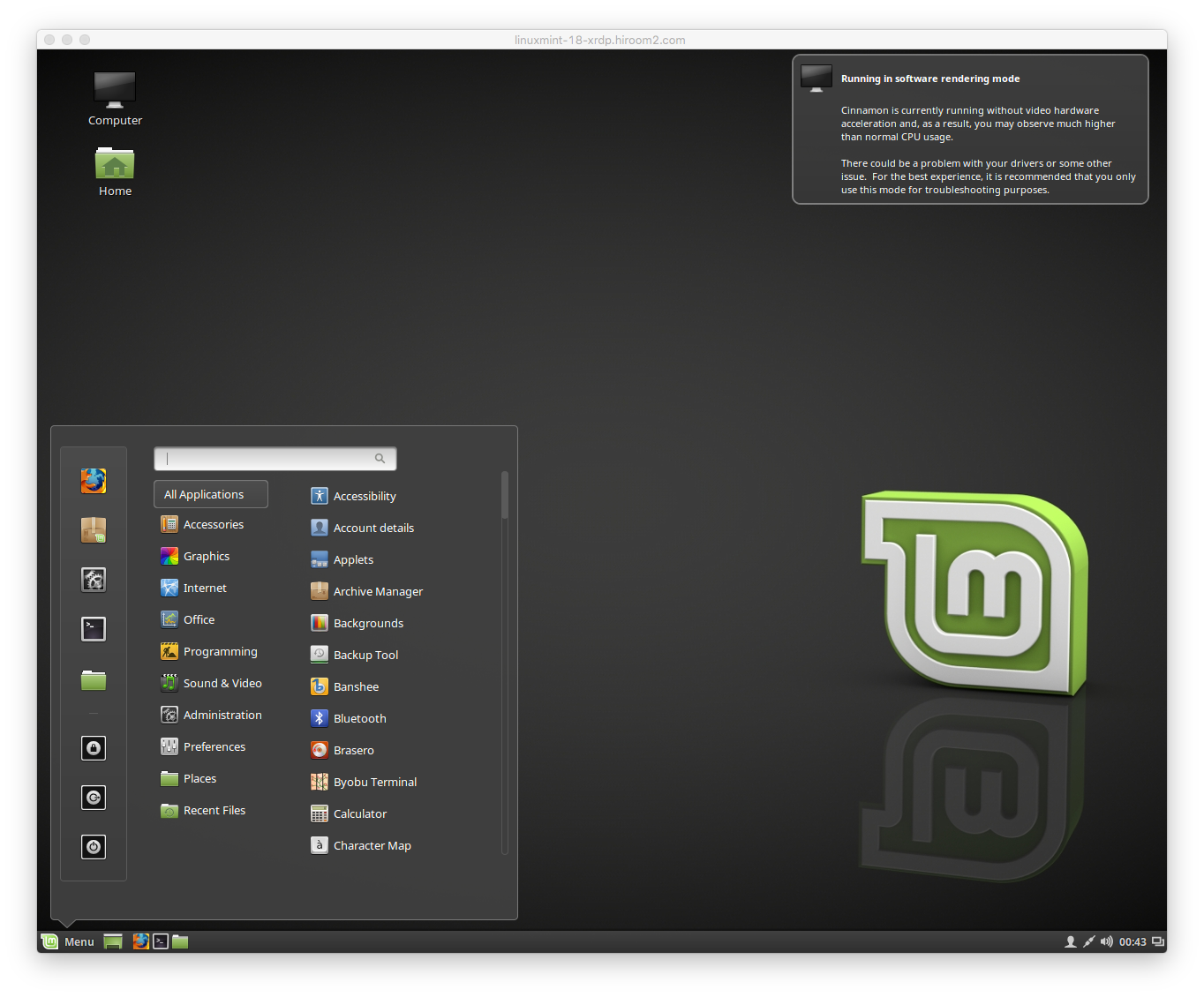
This article will describe installing tigervnc and remote connect to Cinnamon with VNC/XRDP.
Table of Contents
1 Install tigervnc
Build and install tigervnc. Use build script for Ubuntu 16.04 in tigervnc source code.
#!/bin/sh

# Remove vnc4server.
sudo apt remove -y vnc4server

# Create working directory.
mkdir tigervnc
cd tigervnc

# Download source code.
git clone https://github.com/TigerVNC/tigervnc
cd tigervnc/

# Avoid compiler error.
git checkout ff872614b507d0aa8bfbd09ef41550390cfe658a

# Prepare to build package.
ln -s contrib/packages/deb/ubuntu-xenial/debian
chmod a+x debian/rules
sudo apt install -y -o 'apt::install-recommends=true' \
     `dpkg-checkbuilddeps 2>&1 | \
sed -e 's/.*build dependencies://g' -e 's/([^)]*)//g'`

# Build package.
fakeroot debian/rules binary
cd ..

# Install package with resolving dependent package.
sudo dpkg -i *.deb || (sudo apt-get -f install -y ; sudo dpkg -i *.deb || exit 1)
cd ..
2 Run VNC server
Run VNC server with vncserver command.
$ vncserver

You will require a password to access your desktops.

Password:
Verify:
Would you like to enter a view-only password (y/n)? n
Connect to vnc://<server>:5901.

3 Run XRDP server
Install xrdp with apt.
$ sudo apt install -y xrdp
Connect to server with remote desktop.