WineでKindle for PC (Windows)を動かす手順を記載します。
Table of Contents
1 Download Kindle for Windows (Windows)
Download Kindle for Windows (Windows) from here.
$ wget https://s3.amazonaws.com/kindleforpc/44183/KindleForPC-installer-1.17.44183.exe
2 Install Wine
The wine package in standard repository causes Kindle error. Install wine package from Wine repository.
$ sudo apt install -y gcc-multilib libntlm0 libx11-dev:i386 \
     libfreetype6-dev:i386
$ sudo apt build-dep -y wine
$ git clone git://source.winehq.org/git/wine.git
$ cd wine
$ git checkout wine-1.9.19 -b wine-1.9.19
$ ./configure
$ make
$ sudo make install
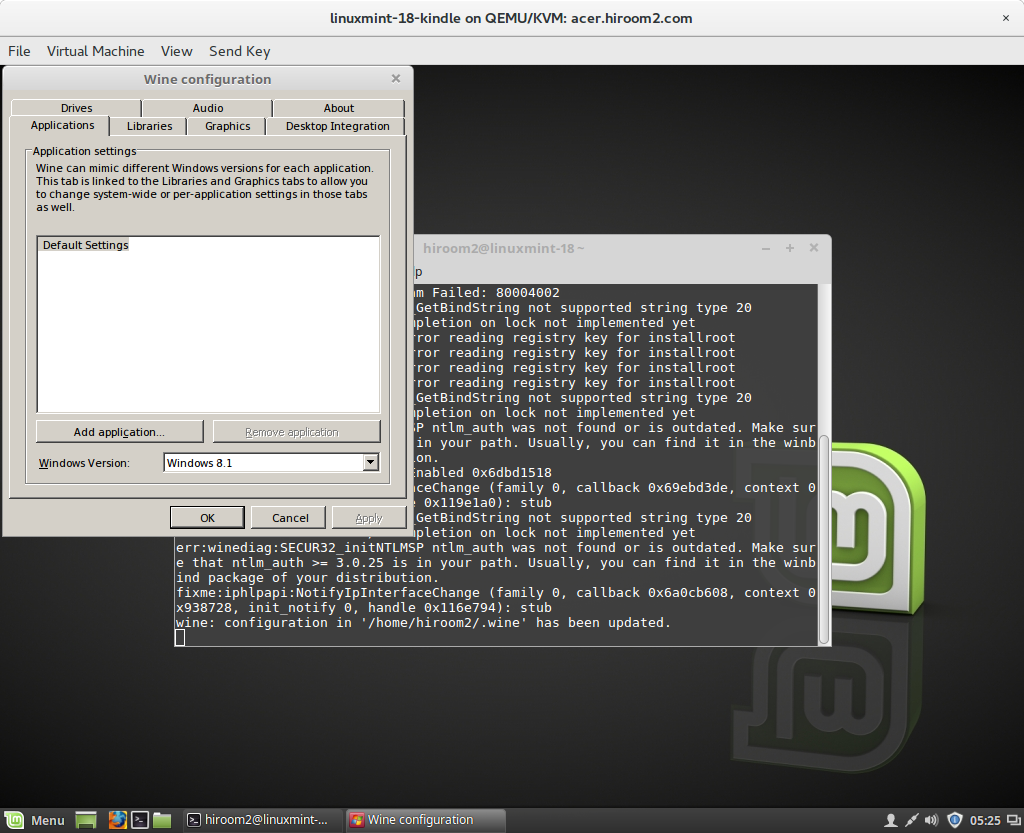
3 Change Windows version to Windows 7 / Windows 8.1 with winecfg
Kindle for PC (Windows) 1.17.44183 does not work Windows XP and Windows 10. Change Windows version to Windows 7 / Windows 8.1 with winecfg.
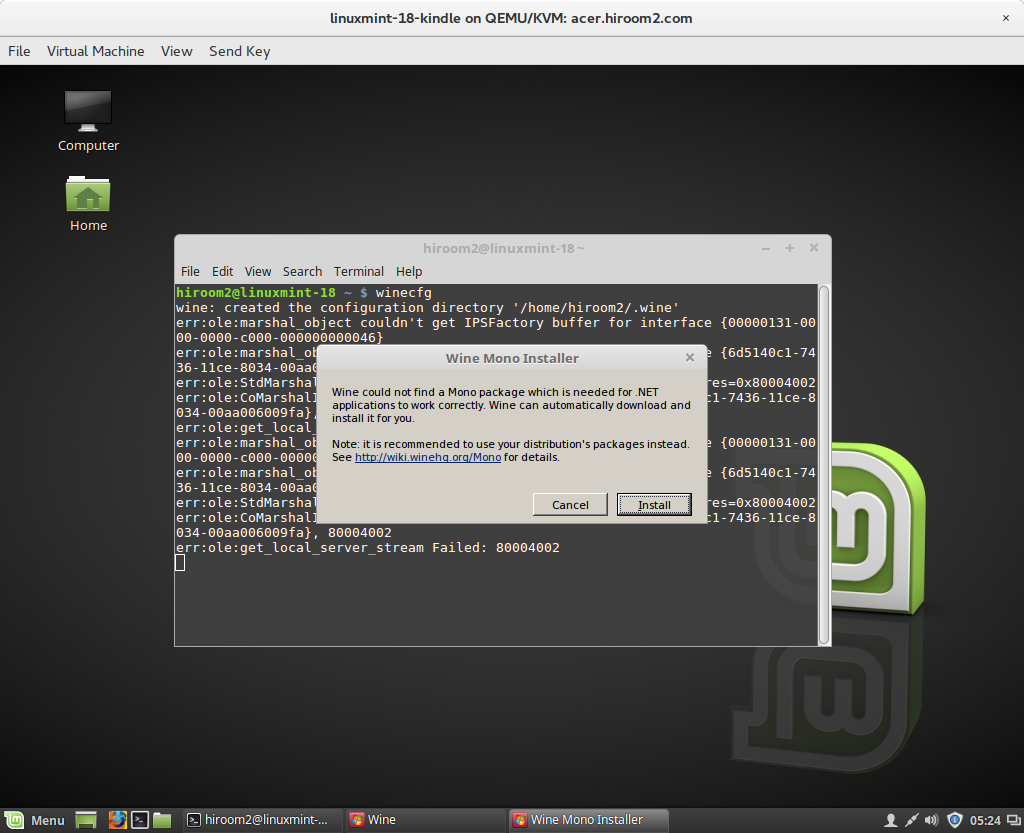
$ winecfg
Install Mono and Gecko (Press "Install" two time).
After changing to Windows 7 / Windows 8.1, press "Apply" button for applying changes.
4 Run Kindle for PC (Windows)
Run Kindle for PC (Windows) with wine.
$ wine KindleForPC-installer-1.17.44183.exe
Input Amazon account for Kindle.
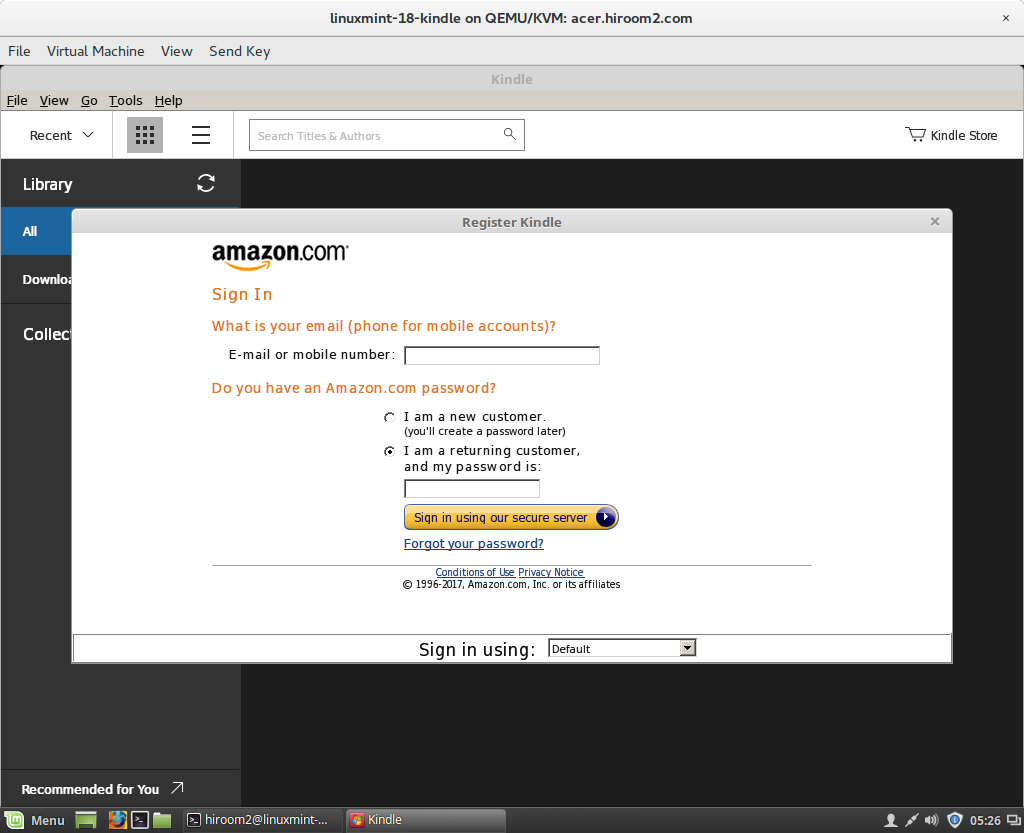
Run the following exe file from next time.
$ wine ~/.wine/drive_c/Program\ Files/Amazon/Kindle/Kindle.exe