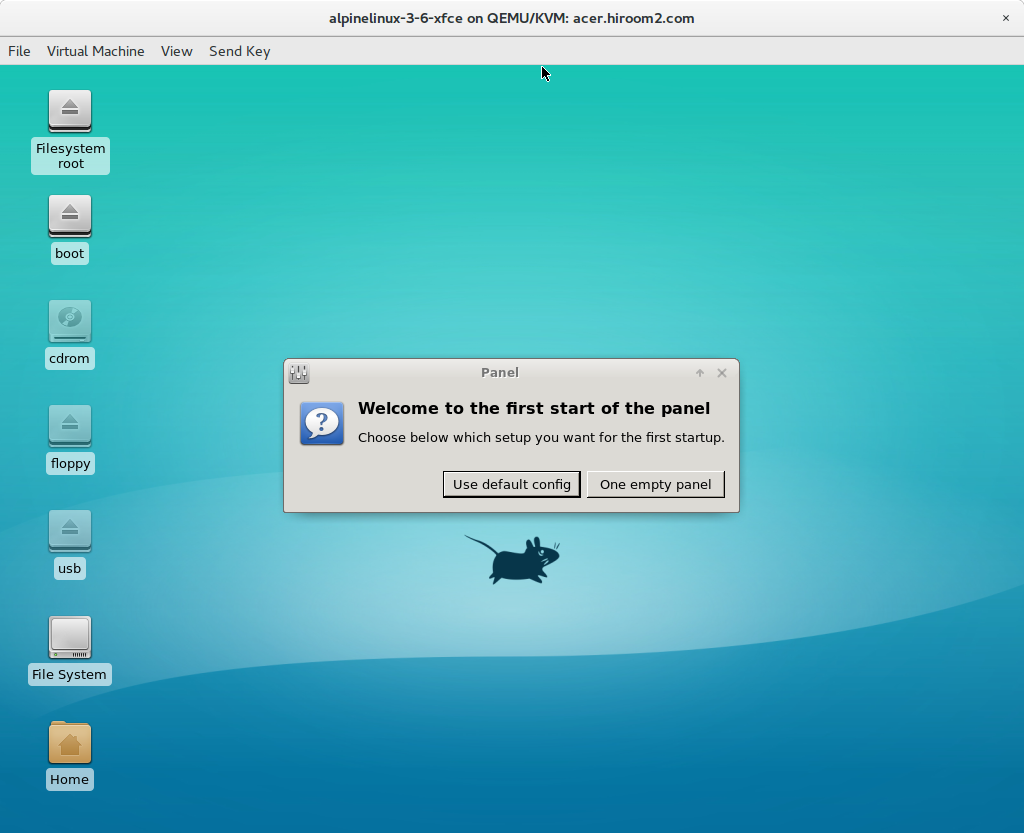
This article will describe installing Xfce for desktop environment.
Table of Contents
1 Install Xfce
The following command will install Xfce.
$ sudo setup-xorg-base
$ sudo sed -e 's;^#http\(.*\)/v3.6/community;http\1/v3.6/community;g' \
       -i /etc/apk/repositories
$ sudo apk update
$ sudo apk add xfce4 lxdm faenza-icon-theme
$ sudo rc-update add lxdm
$ sudo rc-update add dbus
$ sudo reboot
2 Login to Xfce
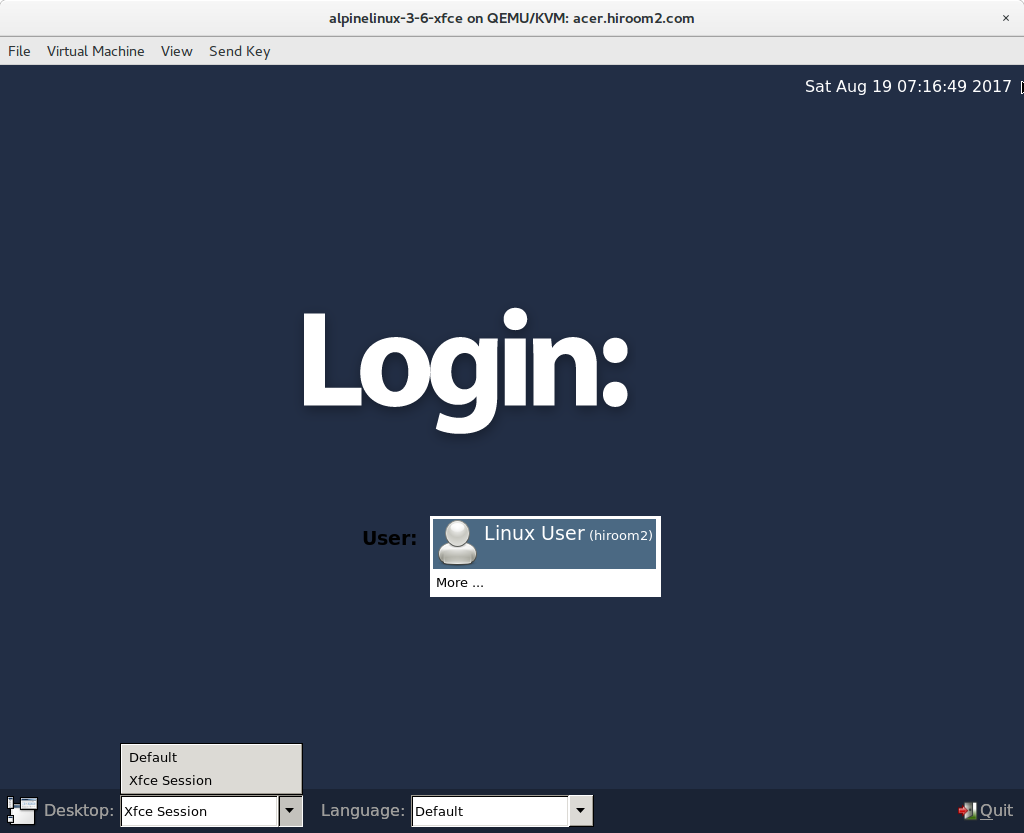
Select "Xfce Session" at Desktop.
Xfce is displayed.